
Work across three panes
Presets and run history are on the left, files and before/after names in the center, and rules on the right. Start an empty recipe with New settings (新しい設定). Toggle the rule pane with ルールの表示 at the top right.
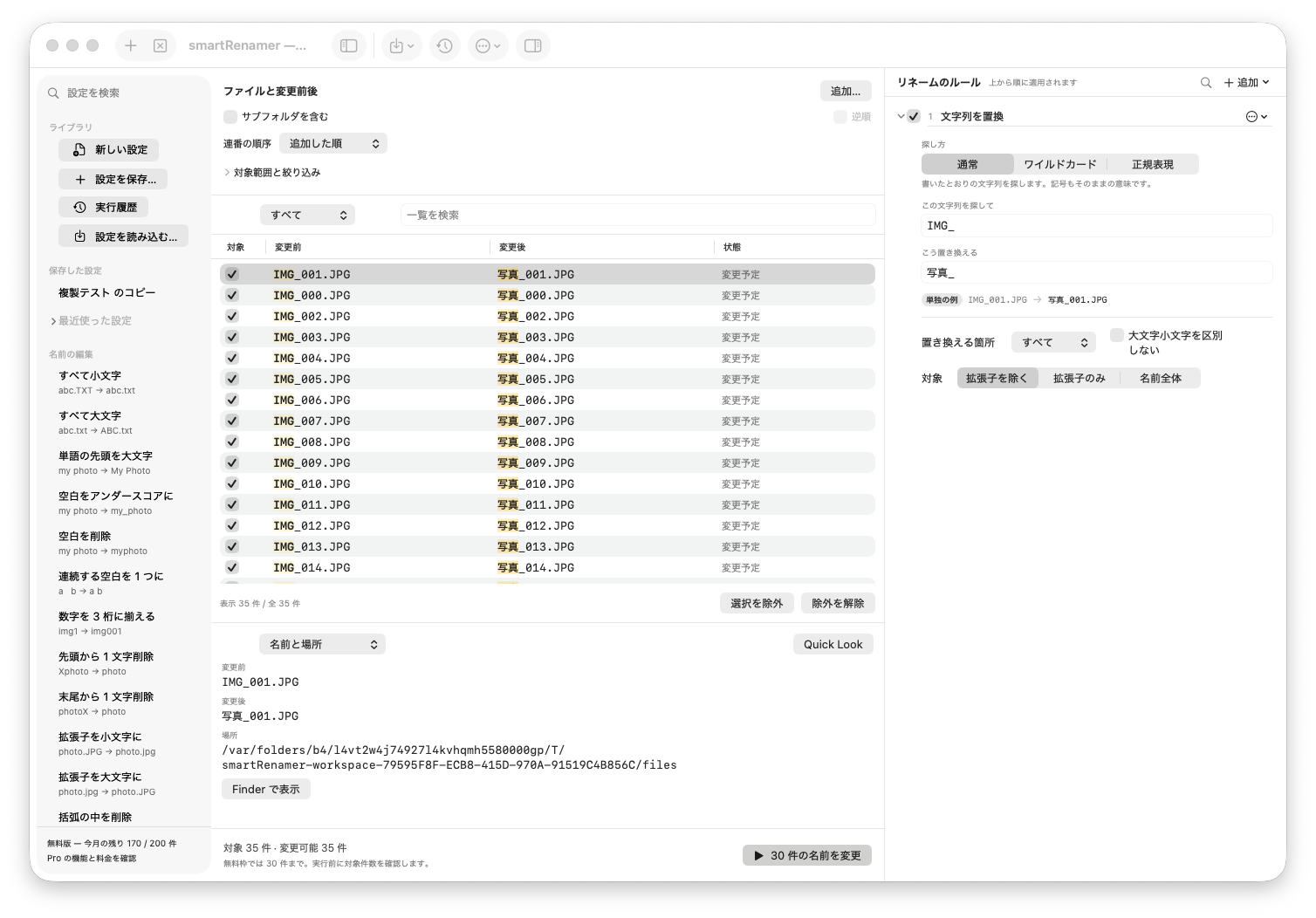
Select a file to inspect Name and location (名前と場所), Rule steps (ルールの途中結果), or Metadata (メタデータ) below the list. Quick Look previews its contents; Show in Finder (Finder で表示) opens its location.
Add files and folders
- Drop files or folders from Finder, or choose Add (追加…).
- If asked for access, select the folder containing the files to process.
- Enable Include subfolders (サブフォルダを含む) only when you want to search deeper.
- Open Scope and filters (対象範囲と絞り込み) to limit collection.
Turn off Folders themselves (フォルダ自体) when you want only files inside them. Searching subfolders and renaming the folders themselves are separate settings.
Set the collection scope
| Setting | Purpose |
|---|---|
| Files / folders | Choose which kind of item to rename. |
| Hidden files | Include or exclude hidden items, including dot-prefixed names. |
| Extensions | Enter jpg, png, for example. Leave empty for any extension. |
| Depth | Subfolder depth; 0 means unlimited. |
| Name filter | IMG_*.jpg in wildcard mode matches the whole name, including its extension. |
| Exclude matching names | Remove matching items from collection. |
Literal and regex name filters look for a matching portion. Anchor a regular expression with ^ and $ to require a whole-name match.
Display, selection, and exclusion differ
| Action | Effect on execution |
|---|---|
| List search or Display (表示) | Only changes visible rows. Hidden rows remain eligible for renaming. |
| Selecting a row | Chooses file details or menu targets; it does not limit execution to selected rows. |
| Unchecking inclusion / 変更対象から除外 | Excludes the file from renaming, including after rule edits. |
| Remove from list (一覧から外す) | Removes the row, not the actual file. |
Numbering order and manual arrangement
Numbering order (連番の順序) supports natural or strict name order, dates, size, extension, path, and insertion order, with Reverse (逆順). Natural order treats number groups numerically.
For manual arrangement, clear search and set Display to All. Drag rows, or select one and use Move up / Move down (順番を上へ / 順番を下へ).
Read the preview and results
Rules apply from top to bottom. Changed portions are highlighted; Rule steps shows each intermediate name. A replacement rule’s stand-alone example (単独の例) shows only that rule. Use the center table for the final result.
Wait for calculation to finish, read settings errors, and review rows with warnings or problems. Display options are All (すべて), Changed (変更あり), Warnings / problems (注意・問題), and Excluded (除外). They do not change which files are included.
After execution, review success and failure counts and details. Unchanged names and blocked rows are not renamed. See the message reference.
Keyboard shortcuts
| Key | Action |
|---|---|
| ⌘O | Add files |
| ⌘R | Refresh preview |
| ⌘Return | Run when execution is available |
| ⌘⇧Z | Undo the most recent file name change |
| Space | Quick Look for the selected file when the list has focus |
Menu availability depends on focus, selection, and the app’s current state.
Still need help?
Tell us the settings used, the message shown, and the result you expected.
Contact options ↗